
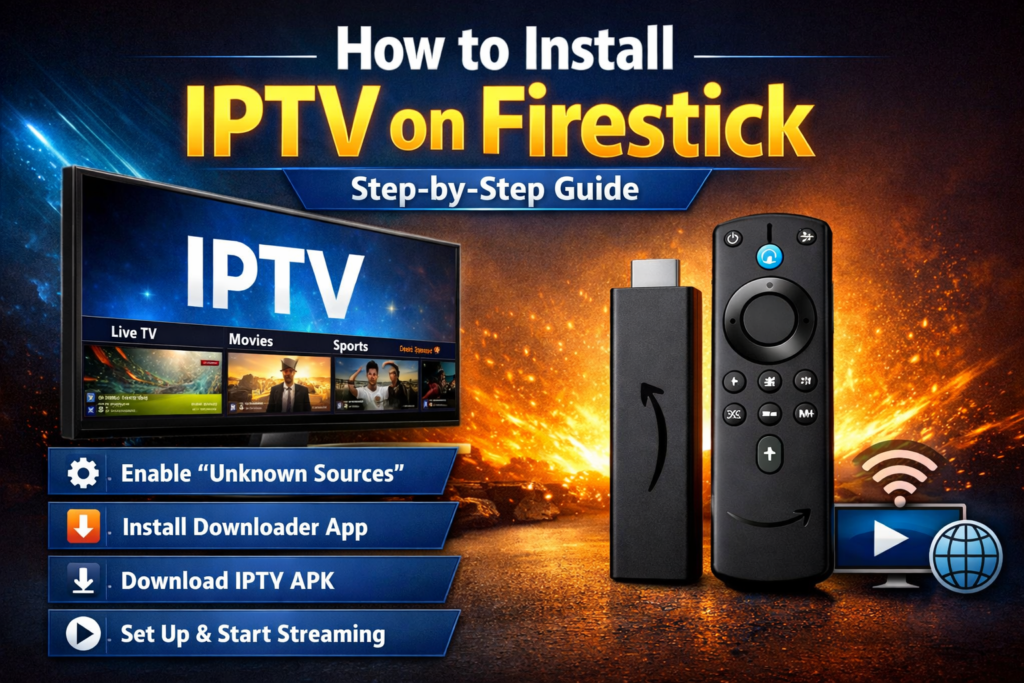
How to Install IPTV on Firestick – Step-by-Step Guide (2026)
Introduction
Amazon Firestick has become one of the most popular streaming devices in the world thanks to its affordability, speed, and ease of use. When combined with IPTV, Firestick provides access to live television, sports, movies, and on-demand entertainment from a single device.
In this guide, you’ll learn how to install IPTV on Firestick step-by-step, configure your IPTV player, and optimize your device for the best streaming experience in 2026.
Why Use IPTV on Firestick?
Firestick is an excellent choice for IPTV because it offers:
- Fast and reliable performance
- Support for HD, Full HD, and 4K streaming
- Easy installation of IPTV applications
- User-friendly remote control
- Affordable hardware compared to traditional TV solutions
- Compatibility with most IPTV services
Whether you’re a beginner or an experienced streamer, Firestick makes IPTV simple and convenient.
What You’ll Need Before Installation
Before starting, make sure you have:
✅ An Amazon Firestick device
✅ A stable internet connection
✅ An IPTV subscription
✅ IPTV login credentials
✅ Enough storage space on your Firestick
For the best performance, a minimum internet speed of 25 Mbps is recommended for Full HD streaming.
Step 1: Prepare Your Firestick
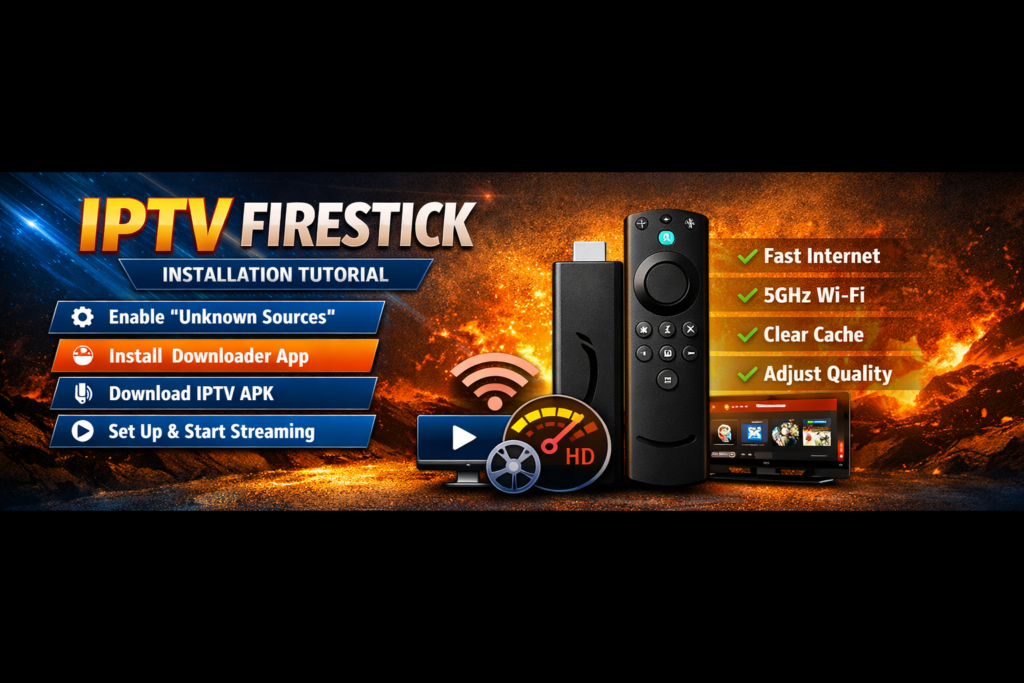
First, you’ll need to enable app installations.
- Turn on your Firestick.
- Go to Settings.
- Select My Fire TV.
- Open Developer Options.
- Enable Install Unknown Apps if required by your chosen IPTV application.
This allows Firestick to install compatible IPTV applications.
Step 2: Install an IPTV Player
An IPTV player is required to access IPTV content.
Popular IPTV players include:
- IPTV Smarters
- TiviMate
- XCIPTV
- Smart IPTV
- OTT Navigator
Choose the IPTV player that best suits your needs and install it on your Firestick.
Step 3: Launch the IPTV Application
After installation:
- Open your IPTV player.
- Select the login method provided by your IPTV service.
- Enter your credentials carefully.
- Save the settings.
The application will begin loading channels, movies, and TV series.
Step 4: Load IPTV Content
Once logged in:
- Live TV channels will appear in the channel section.
- Movies will appear in the VOD section.
- TV series will appear in the series library.
- Categories can be organized for easier navigation.
Depending on your internet speed, loading may take a few moments.
Step 5: Optimize Streaming Performance
For the best IPTV experience:
Use Ethernet When Possible
A wired connection often provides more stability than Wi-Fi.
Keep Applications Updated
Regular updates improve performance and compatibility.
Restart Firestick Regularly
Restarting helps clear temporary files and maintain smooth performance.
Close Unused Applications
Running fewer background apps can improve streaming quality.
Use High-Speed Internet
Recommended speeds:
- HD Streaming: 10 Mbps+
- Full HD Streaming: 25 Mbps+
- 4K Streaming: 50 Mbps+
Common IPTV issues and Solutions
Buffering
Possible causes:
- Slow internet connection
- Wi-Fi interference
- High network traffic
Solutions:
- Restart your router
- Move closer to your Wi-Fi source
- Use an Ethernet adapter
Channels Not Loading
Try:
- Restarting the IPTV app
- Checking login details
- Refreshing content within the application
Application Crashes
Solutions:
- Update the app
- Clear cache
- Restart Firestick
Benefits of Using IPTV on Firestick
Massive Content Selection
Access live channels, sports, entertainment, documentaries, movies, and more.
Easy Navigation
Firestick’s interface makes browsing IPTV content simple and intuitive.
Portable Streaming
Take your Firestick wherever you go and enjoy IPTV on any compatible television.
High-Quality Streaming
Many IPTV services support HD, Full HD, and 4K content.
Frequently Asked Questions
Can Firestick Stream IPTV in 4K?
Yes. Firestick supports 4K streaming when using a compatible model and sufficient internet speed.
Is Firestick Good for IPTV?
Absolutely. Firestick remains one of the most popular devices for IPTV users because of its simplicity and reliability.
Do I Need Technical Skills?
No. Most IPTV applications can be installed and configured within a few minutes.
Can I Use IPTV on Multiple Devices?
Many IPTV subscriptions support multiple devices depending on the plan.
Final Thoughts
Installing IPTV on Firestick is straightforward and only takes a few minutes. With the right setup, users can enjoy live television, movies, TV shows, sports, and on-demand content from a single device.
By following this step-by-step guide and optimizing your Firestick settings, you’ll be able to enjoy a smooth and reliable IPTV streaming experience throughout 2026.